Contacts (Shift+F5)
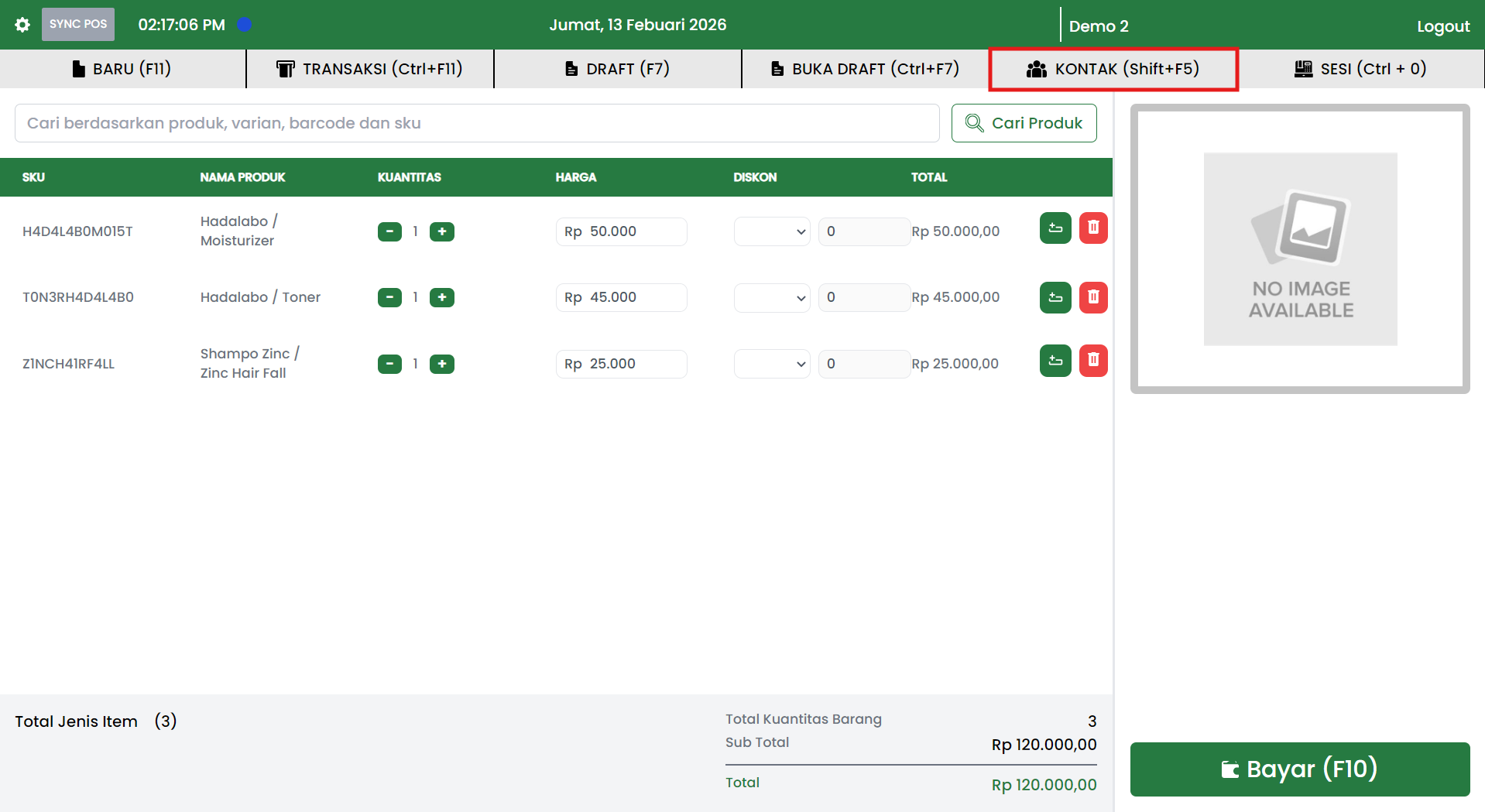
The CONTACTS (Shift+F5) menu is used to open the list of Customers and Members in the Jova POS cashier application.
This feature helps cashiers select customer data quickly during the payment process, making Name, Phone, Email, and Address input more organized and consistent.
Menu Location and Shortcut
The CONTACTS menu is located in the cashier page header, aligned with other menus such as NEW, TRANSACTIONS, DRAFT, OPEN DRAFT, and SESSION.
Keyboard shortcut:
Shift + F5
Main Functions of Contacts
The Contacts menu is used to:
- View the list of saved Customers.
- View the list of saved Members.
- Assist in selecting customer data during transactions (reducing manual input).
- Maintain contact data consistency for invoice and transaction history needs.
Contacts Popup Structure
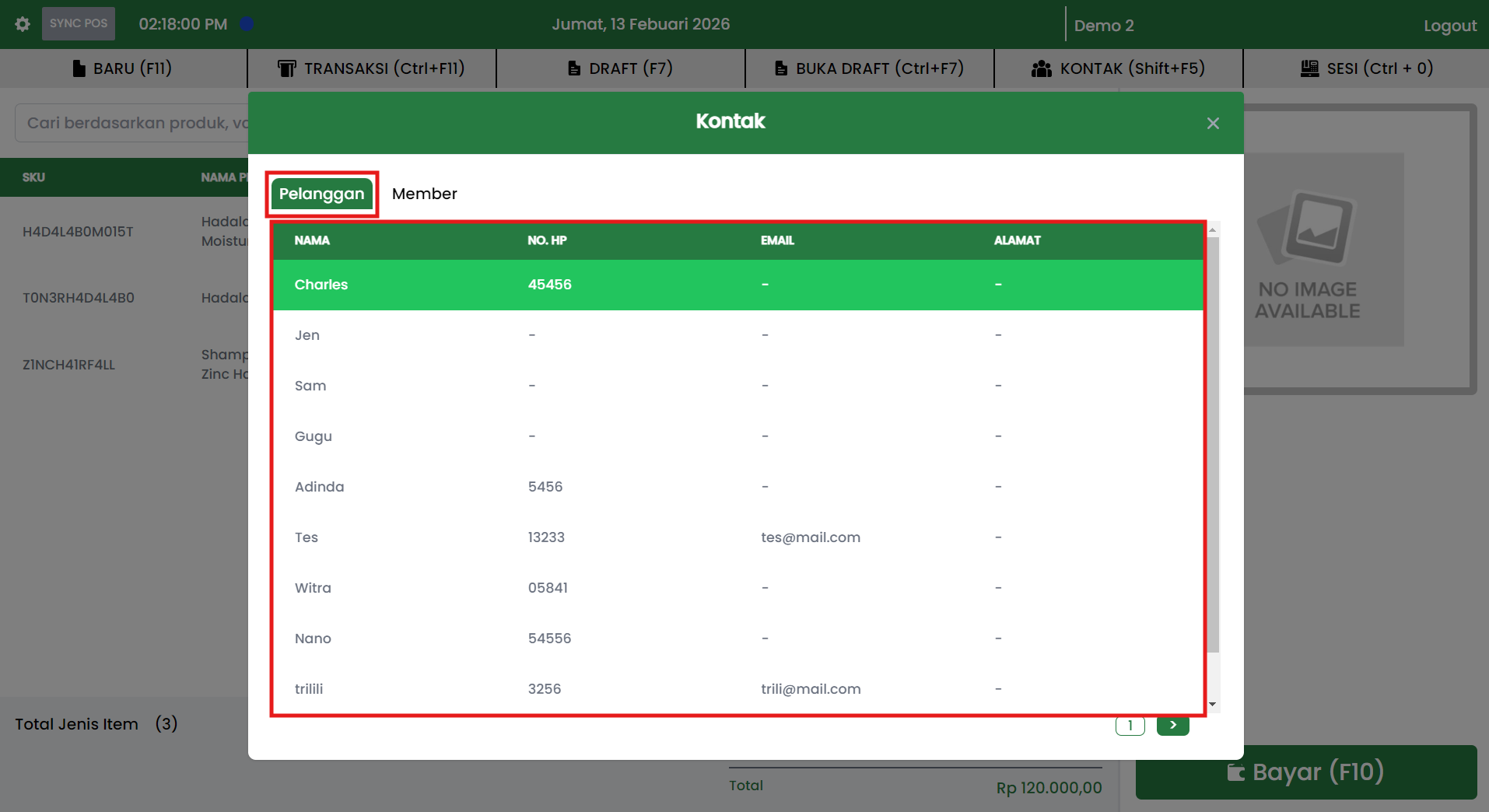
When the CONTACTS (Shift+F5) menu is opened, the system displays a Contacts popup containing:
- Customers tab
- Members tab
- Contact list table according to the selected tab
- Page navigation controls (pagination) at the bottom (if there is a lot of data)
Customers Tab
The Customers tab displays the list of non-member customers.
Information displayed in the table generally includes:
- Name
- Phone
- Address
Members Tab
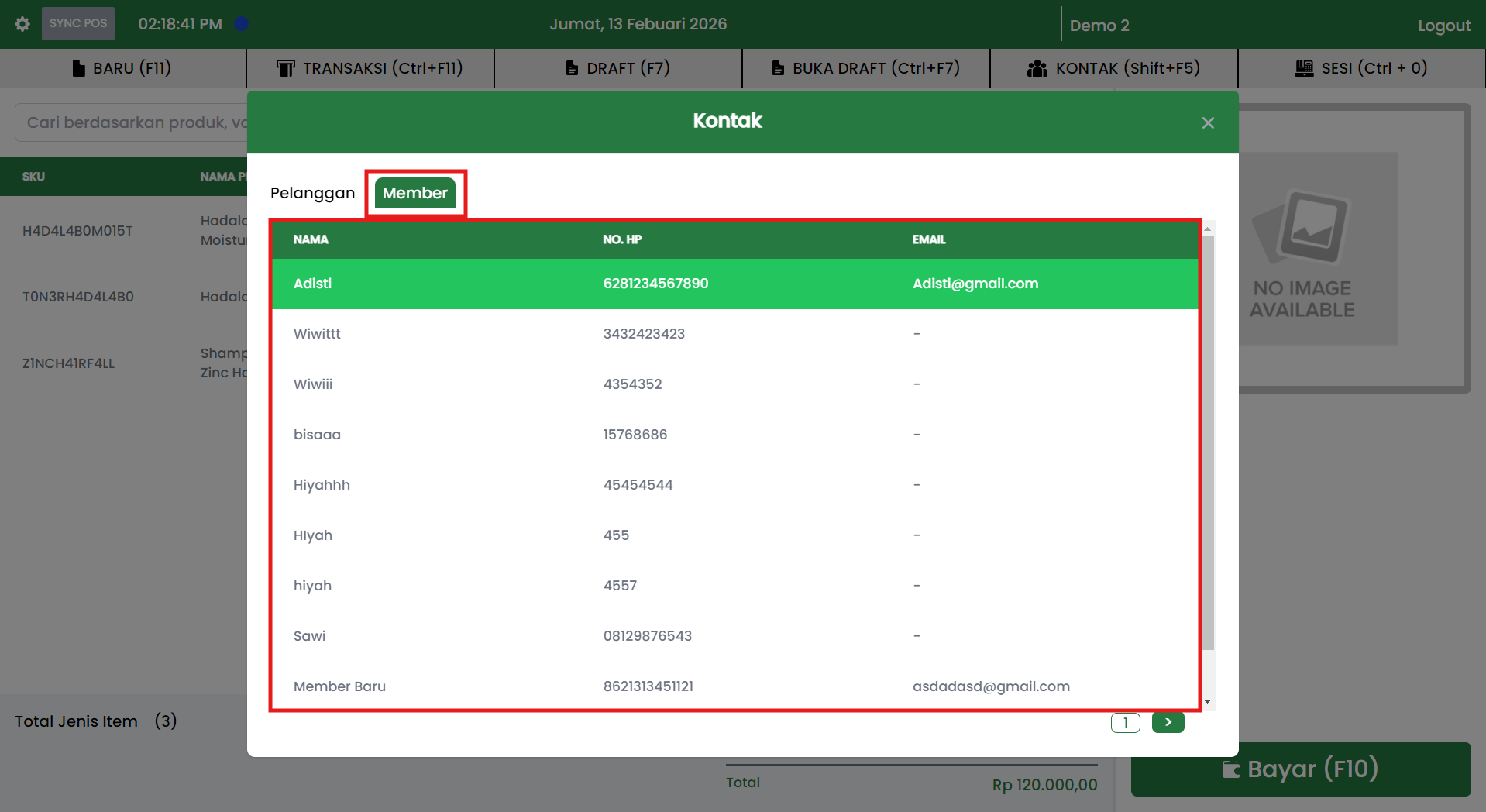
The Members tab displays the list of customers registered as members.
Information displayed in the table generally includes:
- Name
- Phone
Usage Scenarios in Transactions
1. Filling in customer data during payment
General flow:
- Make sure transaction items are entered on the cashier page.
- Click Pay (F10) to open the payment popup.
- In the Customer Data section, click the contact icon to open the contact list.
- The Contacts popup will open.
- Select the Customers or Members tab as needed.
- Click the selected contact row (according to store implementation).
- The system fills the customer data into the payment form.
Note: the selection mechanism (click row or select button) follows each store's implementation.
Recommended Operational Practices
- Use CONTACTS (Shift+F5) when the customer requests an invoice under a specific name.
- Make sure to select the correct tab (Customers vs Members) so the customer type recording matches the report.
- Minimize manual input to reduce typos in phone numbers, emails, and addresses.